
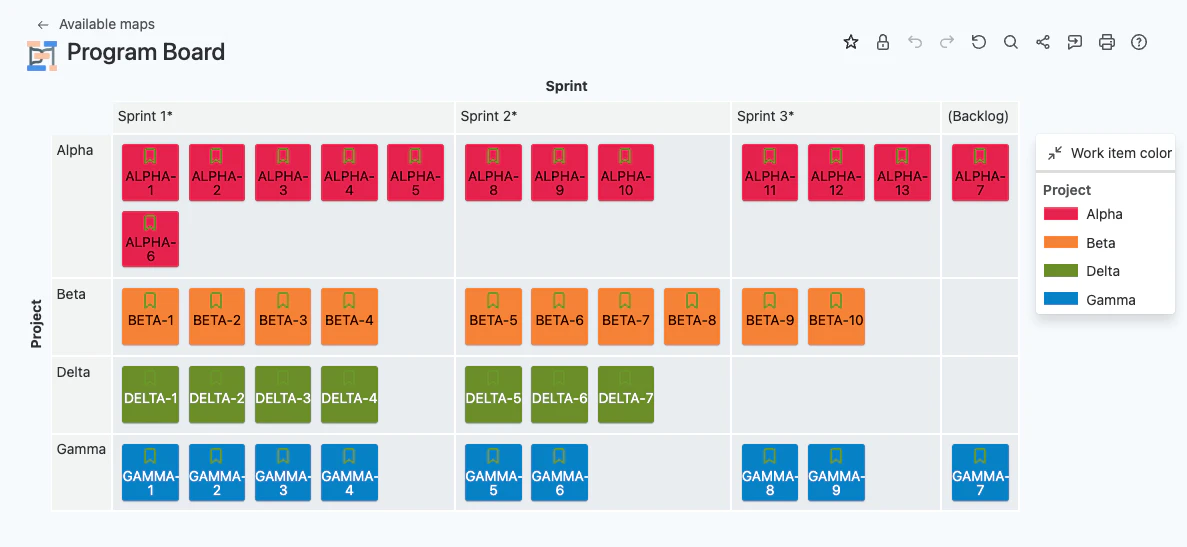
What is a SAFe Program Board?
The Scaled Agile Framework (SAFe) is a framework for coordinating several agile teams working in parallel on an Agile Release Train. This post shows how to build one of its best-known artifacts, the program board, in Dependency Map.
The teams draw that board during PI Planning, the event formerly called program increment planning. It typically runs for two days. The Release Train Engineer leads it, together with product management, business owners, product owners, and the teams. They leave with committed PI objectives and a Program Board. Current SAFe materials call this board an ART Planning Board. Program board is still the name most teams use, so that is the name used here.
The rows are the teams. A board often has a milestones row as well, and sometimes rows for shared services. The columns are the iterations inside one Planning Interval (PI). A PI is the 8–12 week cycle formerly called a Program Increment, so the columns are the sprints in that cycle, often followed by an Innovation and Planning iteration:

A schematic SAFe program board (source: scaledagileframework.com).
The cards are the features to be delivered, and the red strings between them are dependencies. A string means the feature cannot be delivered until the work it depends on is done. That work often belongs to another team. Dependency management is a vital part of any project, and is a subject we will return to in the next part of this series.
Creating a Program Board
There are many ways to configure Jira for SAFe. We’ll assume four Scrum teams (Alpha, Beta, Delta, and Gamma), each with its own project and Scrum board in Jira.
First, create a Jira filter that pulls in the issues you need:
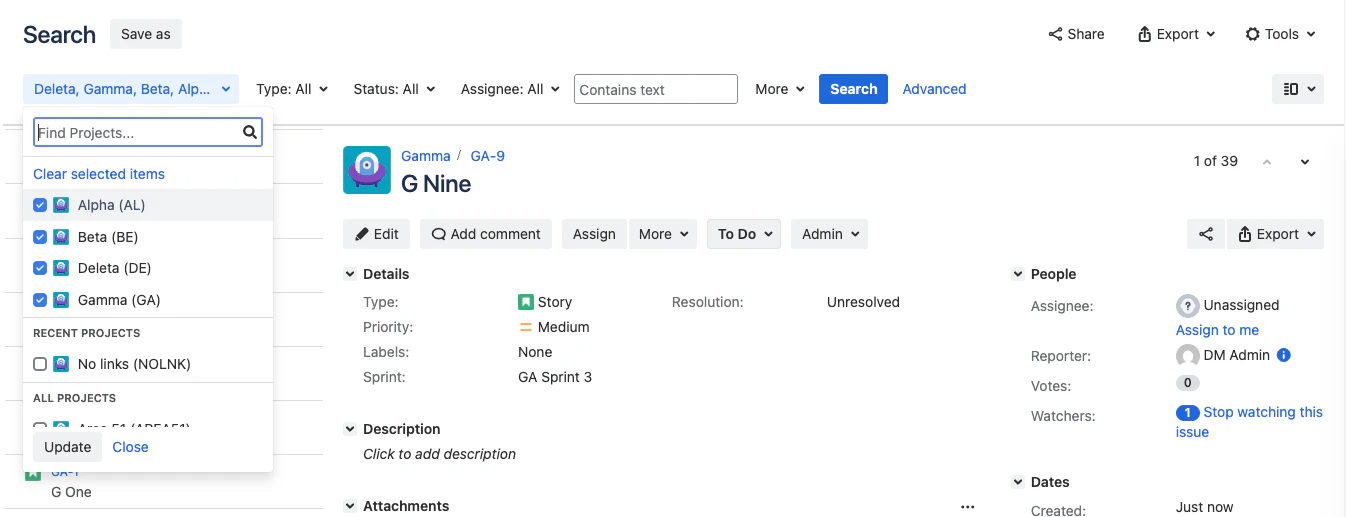
For simplicity, the filter includes every issue in the four projects. You might instead include only open issues, or only issues in the next two or three sprints.
The next step is to create a new map in Dependency Map:
- Give the map a name, e.g. Program Board
- Select the filter we created, here “Program Board”
- Select “Sprint” for the columns
- Select “Project” for the rows
- Set the issue color field to “Project” as well
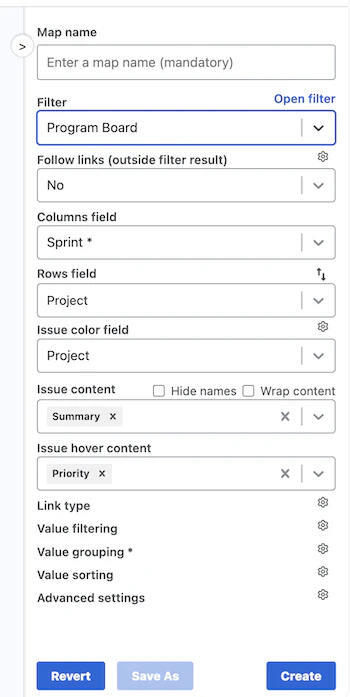
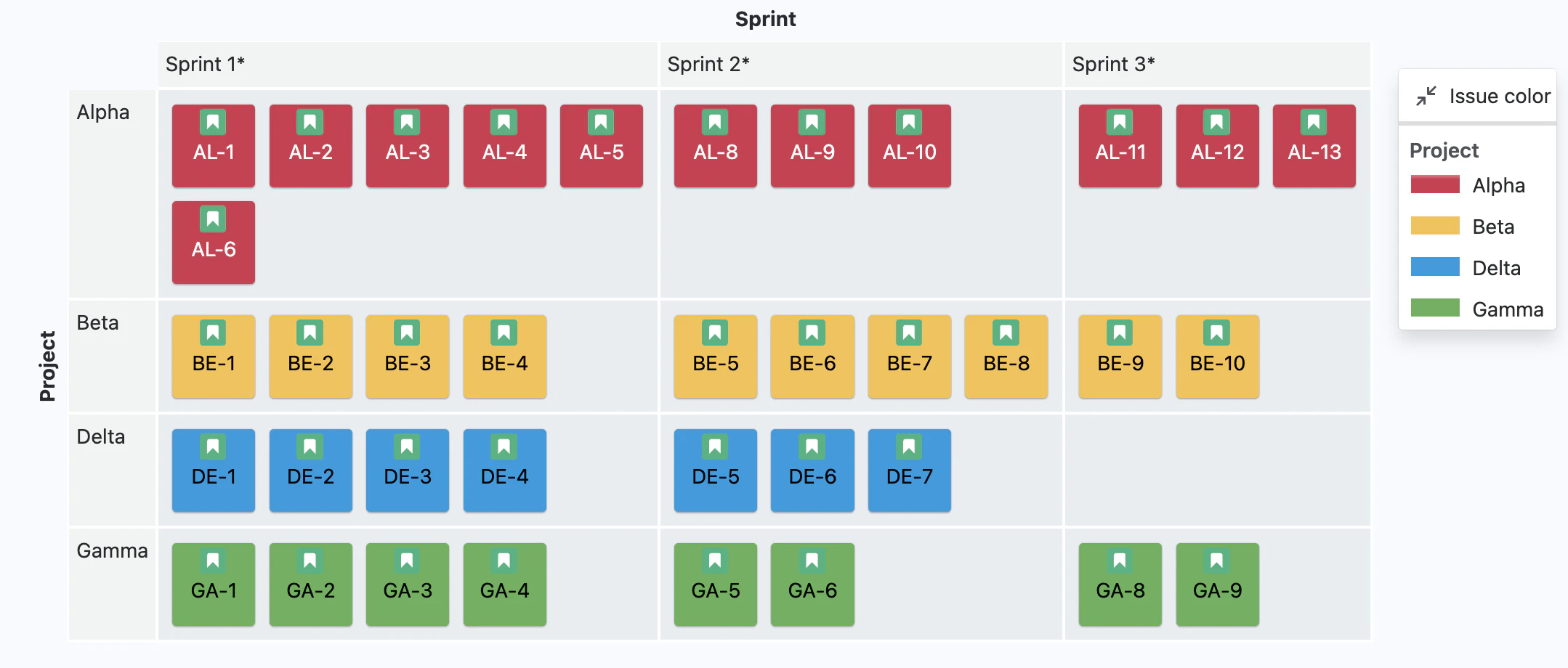
The map looks like this:
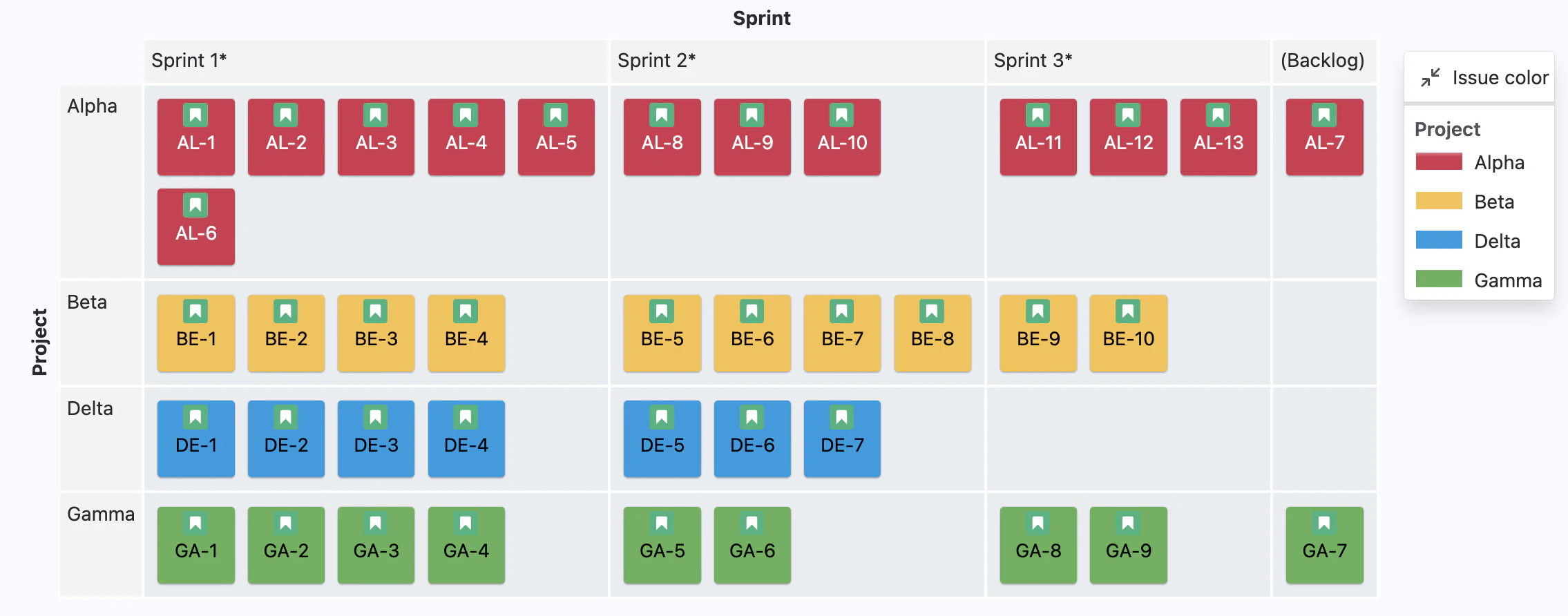
The Sprint columns are labeled Sprint 1*, Sprint 2*, and Sprint 3*. The asterisk means the default Sprint grouping rule is on. The rule keeps the word “Sprint” and the number that follows it, so names such as “Alpha Sprint 1” and “Beta Sprint 1” share a column. Names that follow a different pattern, such as “Increment 1”, stay in their own columns until you add a grouping rule. Read more about custom grouping of issues to learn how to group sprints with different names.
The (Backlog) column holds issues that are not in a sprint. During PI Planning, those issues usually wait outside the board.
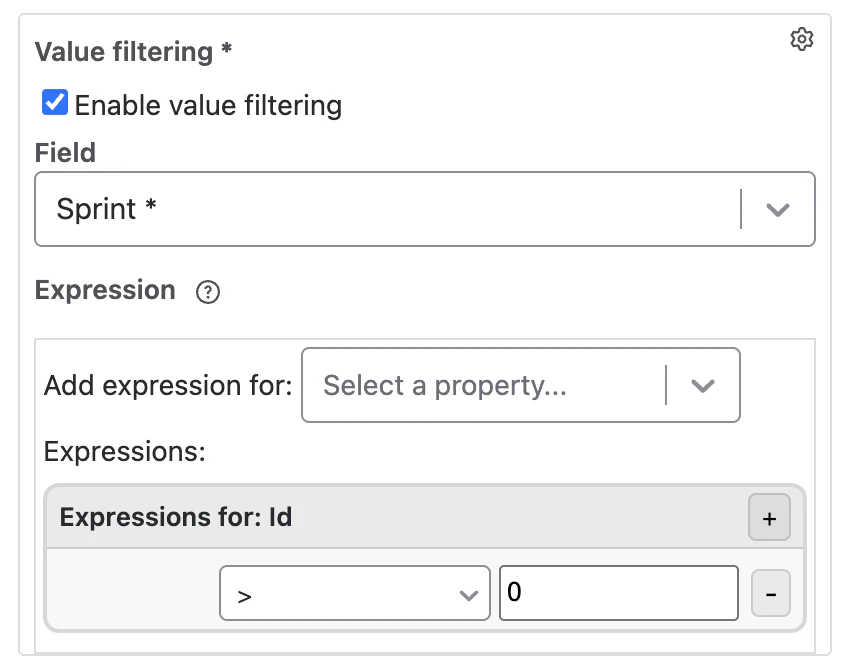
To hide the Backlog column, add a Value filter on the Sprint field that only includes Sprints with an id > 0. Learn more about value filtering in practice.
Now the map looks like this:
Wrap-up
That’s the program board layout: one row per team and one column per sprint, with the planned work represented by cards. In the next part of this series, we’ll look at how to work with dependencies in the program board. We’ll also try other issue colors. Project is a useful starting color, and other fields can show information that makes cross-team coordination easier.
If you want to be notified of new posts and other news related to Dependency Map, sign up for our newsletter:
